
FAQ
Clear steps. Important warnings highlighted. Quick to scan.
D2RMab depends on Microsoft Visual C++ Redistributables.
- Download the full pack (2005–2022): Microsoft_Visual_C_Redistributable_2005-2022.zip
- Install all versions included (x86 and x64).
- Reboot Windows.
Disable HDR in Windows display settings to avoid color/detection issues.
- Open Settings → System → Display.
- Turn Use HDR Off for the monitor used by the game/bot.
Disable any Radeon game filters or post-processing that alter colors/contrast.
- Open Radeon Software and remove applied filters for Diablo II / the bot.
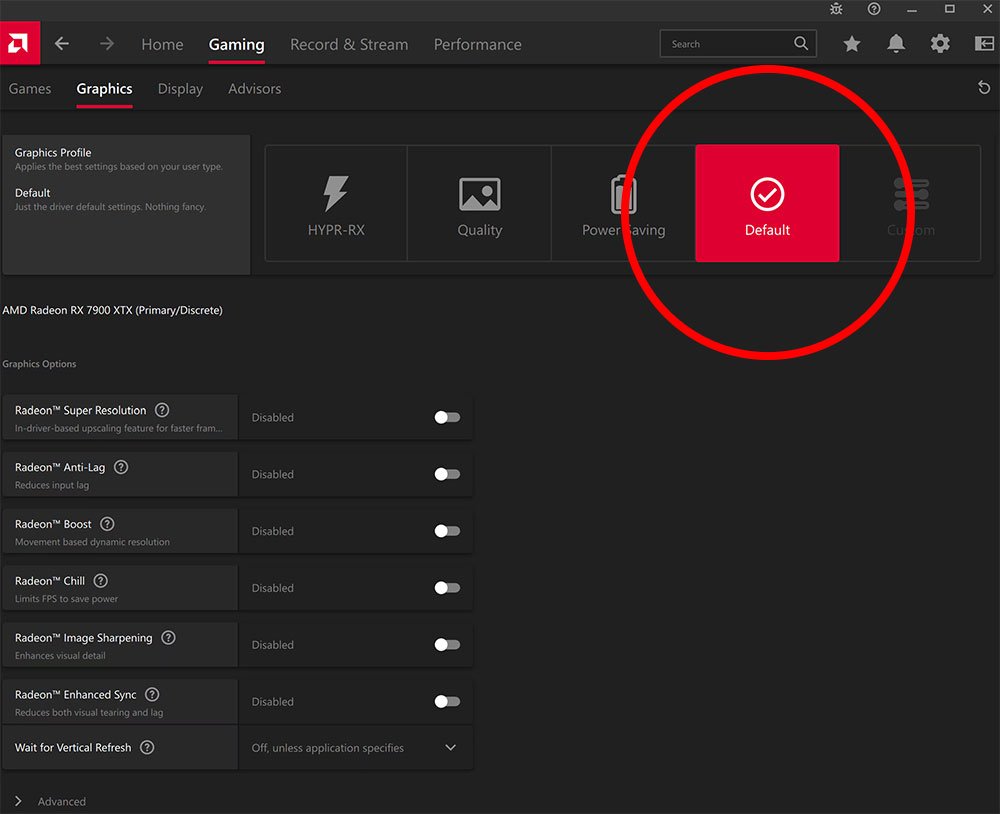
Reset NVIDIA Control Panel settings to default for a consistent baseline.
- Open NVIDIA Control Panel.
- For each tab, click Restore / Restore Defaults.


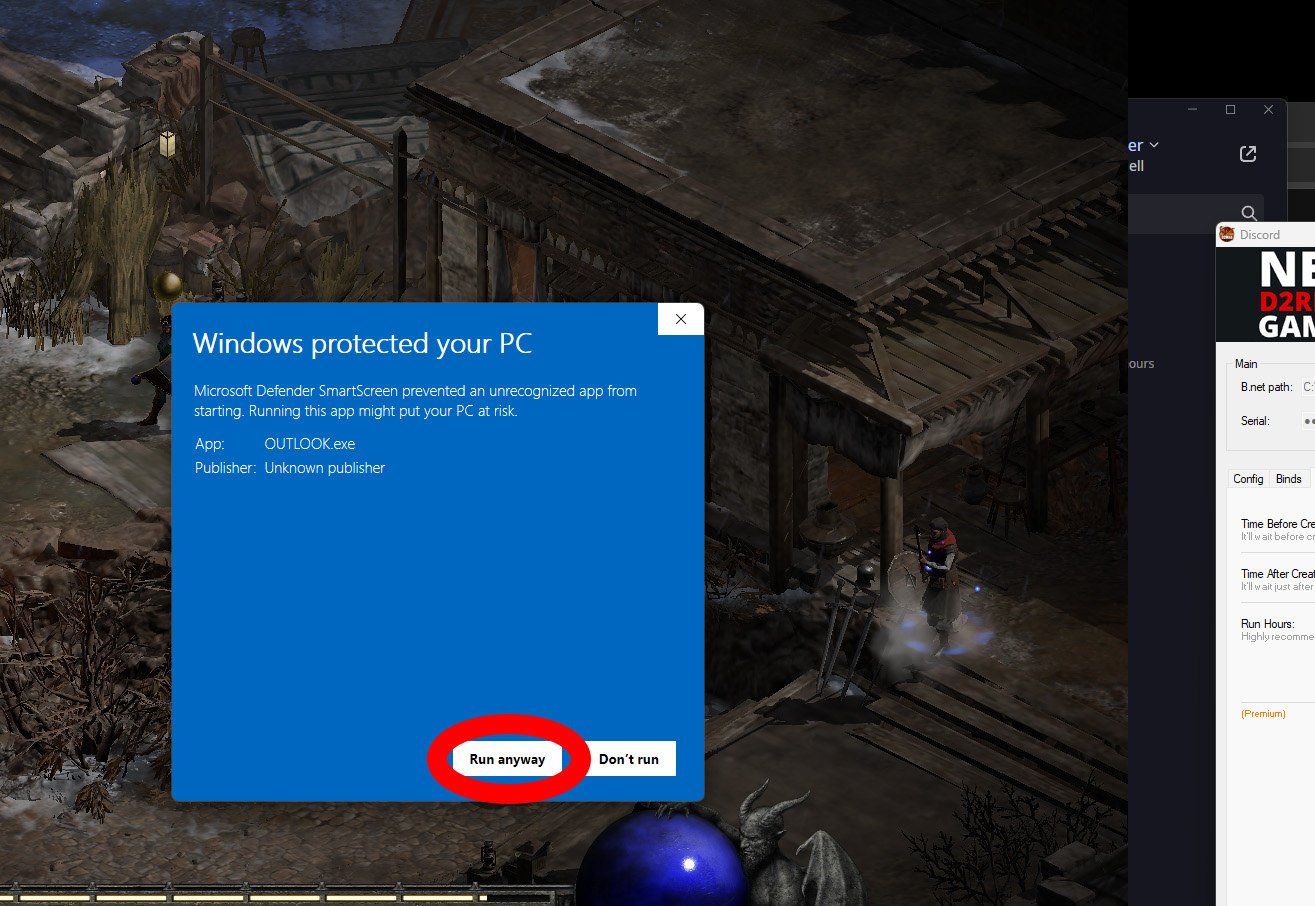
On first run, Windows may warn about unrecognized executables (no code signing certificate). This shows once per executable.
- Open the
binfolder inside the bot folder. - Run each
.exeonce. - When the blue SmartScreen window appears, click More info → Run anyway.
Error 1 or Error 4 — Serial / device mismatch
- Wrong serial entered.
- Outdated D2RMab version.
- Hardware changed or Windows reinstalled — serial rebind required.
Each license is linked to a single device to prevent abuse. If you upgrade your hardware or reinstall Windows, your serial may stop working. No problem — we can reset it for you. Resetting the serial requires manual work on our side (clearing the old device from the database, server, logs. And registering the new one), which is why there is a small service fee. The reset service costs $20.
Once the payment is confirmed, the reset is usually completed within about 30 minutes. Please make sure the bot is closed while the reset is being processed.
If you need a reset, contact us on Discord.
Error 2 — Firewall or serial verification
- Windows Firewall/AV may be blocking the bot from verifying your serial.
- Add the bot folder to Allow list / Exclusions (see Antivirus section below).
Tips and community help are available on Discord.
- Discord channel: #vm-setup
- Recommended tutorial (YouTube): VM setup video
Adjust Windows power settings to prevent sleep or disk timeout.
- Open Settings → System → Power & battery.
- Select a High performance / Best performance plan.
- Set Sleep to Never while plugged in.
- Ensure Turn off hard disk is Never (in advanced power settings).
Adjust FCR on D2RMab Extra Tab
- Open D2RMab.
- Go to the Extra tab.
- Adjust the FCR settings as needed. Try setting FCR to 0 or even -100 keep and testing.
- Open your antivirus Protection History.
- Restore
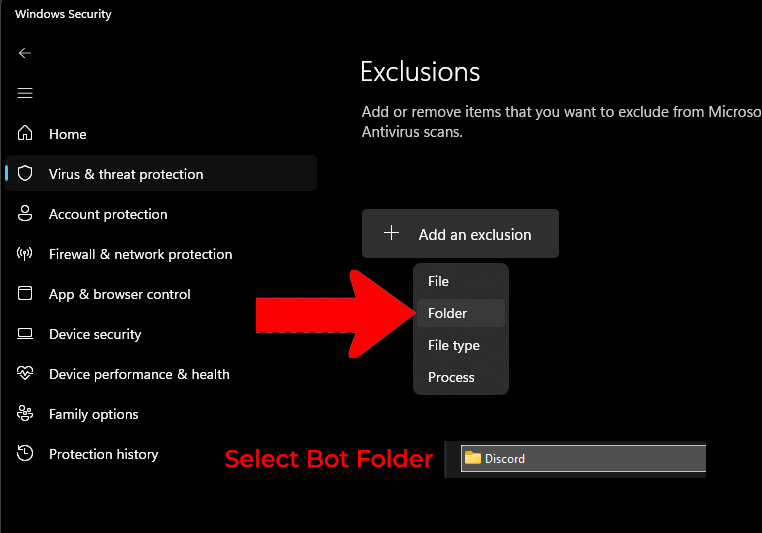
Discord.exefrom quarantine. - Add the D2RMab folder to Exclusions / Allow list.
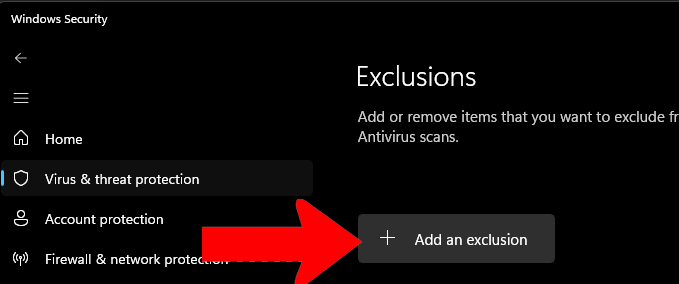
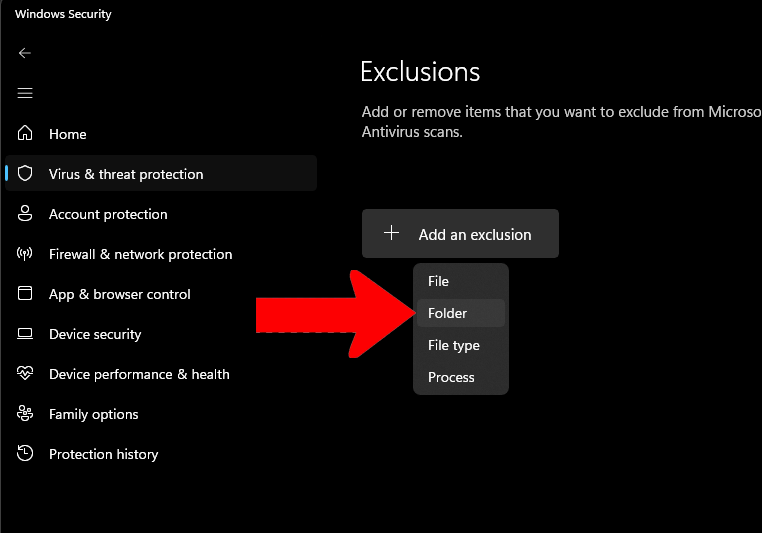
Windows Defender example flow:
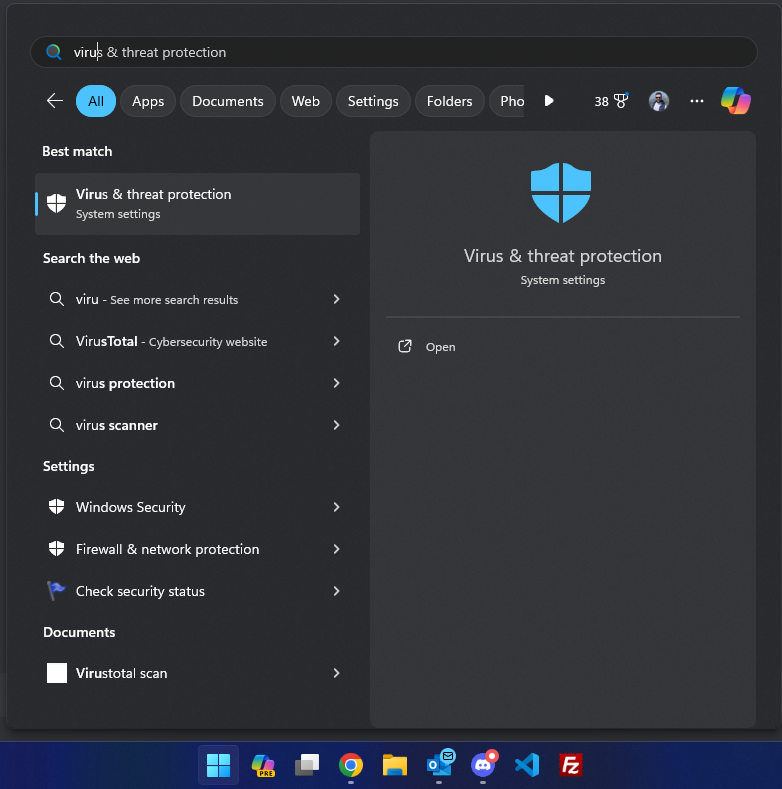
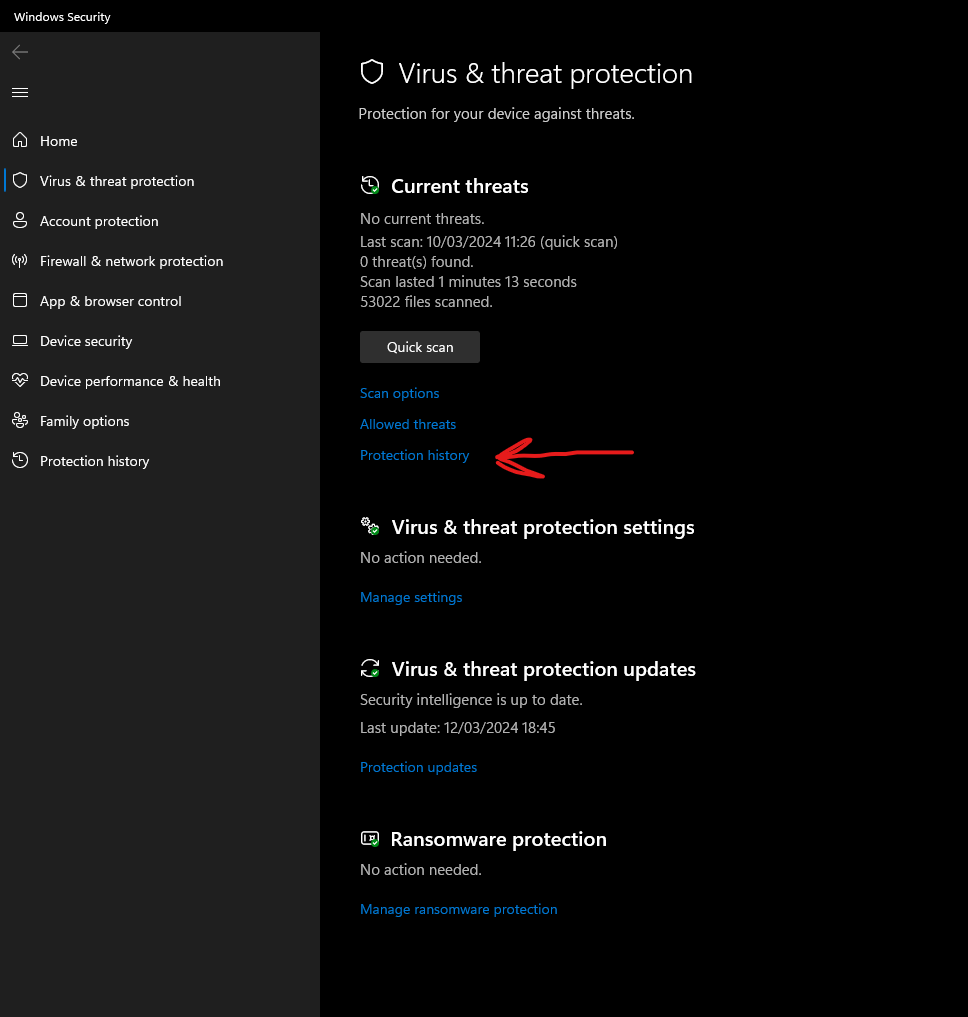
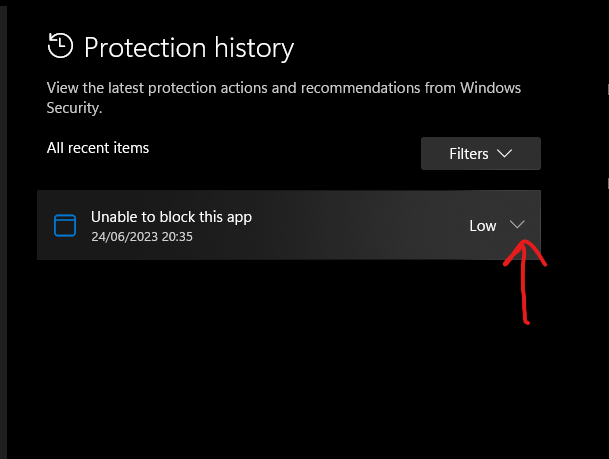
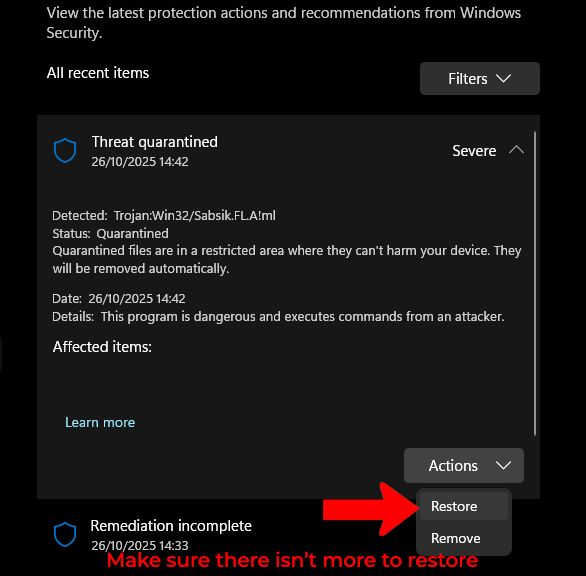
If you use another antivirus, follow the same logic: restore from quarantine and add an exclusion for the bot folder.
Add to exclusions
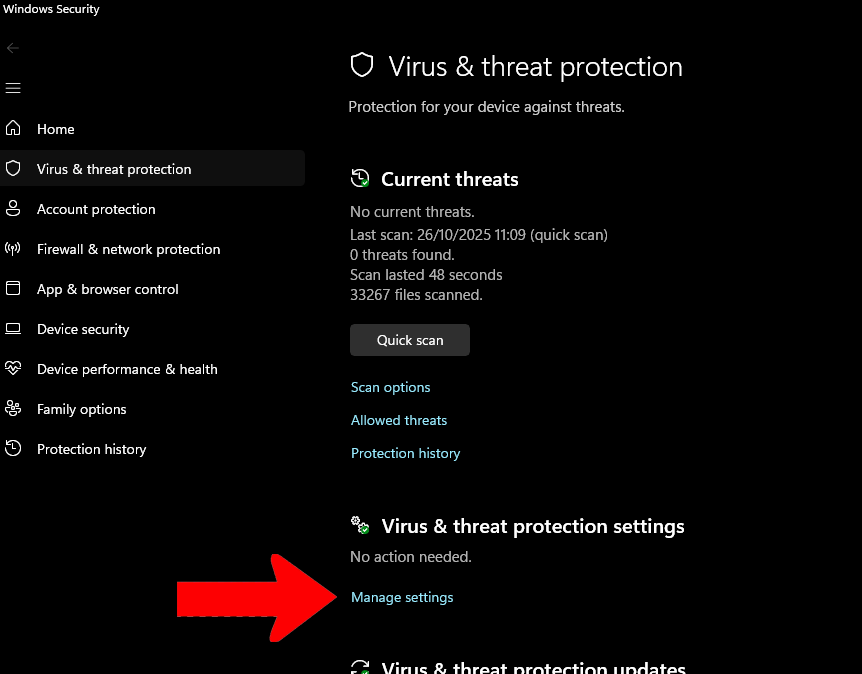
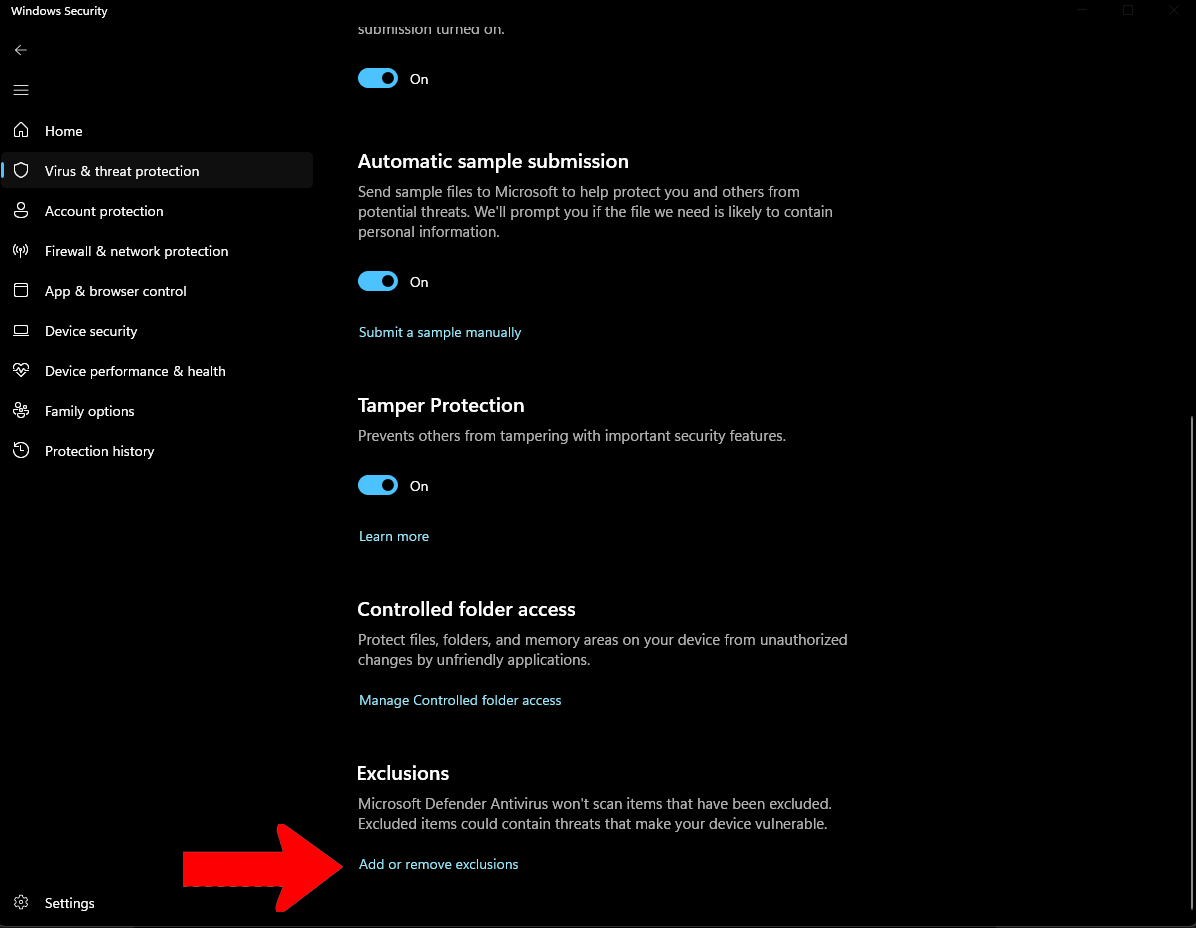
The file items.ini controls which items the bot will pick up.
1 = Pick up the item
0 = Do not pick up the itemNo. You should not add new items to the list.
Adding custom items may cause errors or unexpected behavior.
Only modify the values between 1 and 0.
The files inside the BIN folder are required dependencies for the
bot.
They include modules responsible for:
- AutoHeal
- Chicken
- Premium App
The file names are intentionally obfuscated.
This helps reduce the chances of detection during Warden scanning.